Download Launcher & Game
Get these 3 things ready, then download the Client (and game pack if needed) to join the WC3 1.28 community.
You need these 3 things
- 1
-
2
CyberGameThai Client
Installer or Portable below
-
3
Warcraft III Patch 1.28
If missing, download the ORDR pack below
CyberGameThai Full Setup
Best for players without the game. CyberGameThai Client and Warcraft III 1.28 are bundled together. Extract, run the installer, and use the new desktop shortcut.
- 1 Download RAR
- 2 Extract archive
- 3 Run Setup & play
CyberGameThai-Full-Setup-0.2.70.rar · Launcher updates the Client automatically.
No separate Client and game downloads.
Options if you already have the game
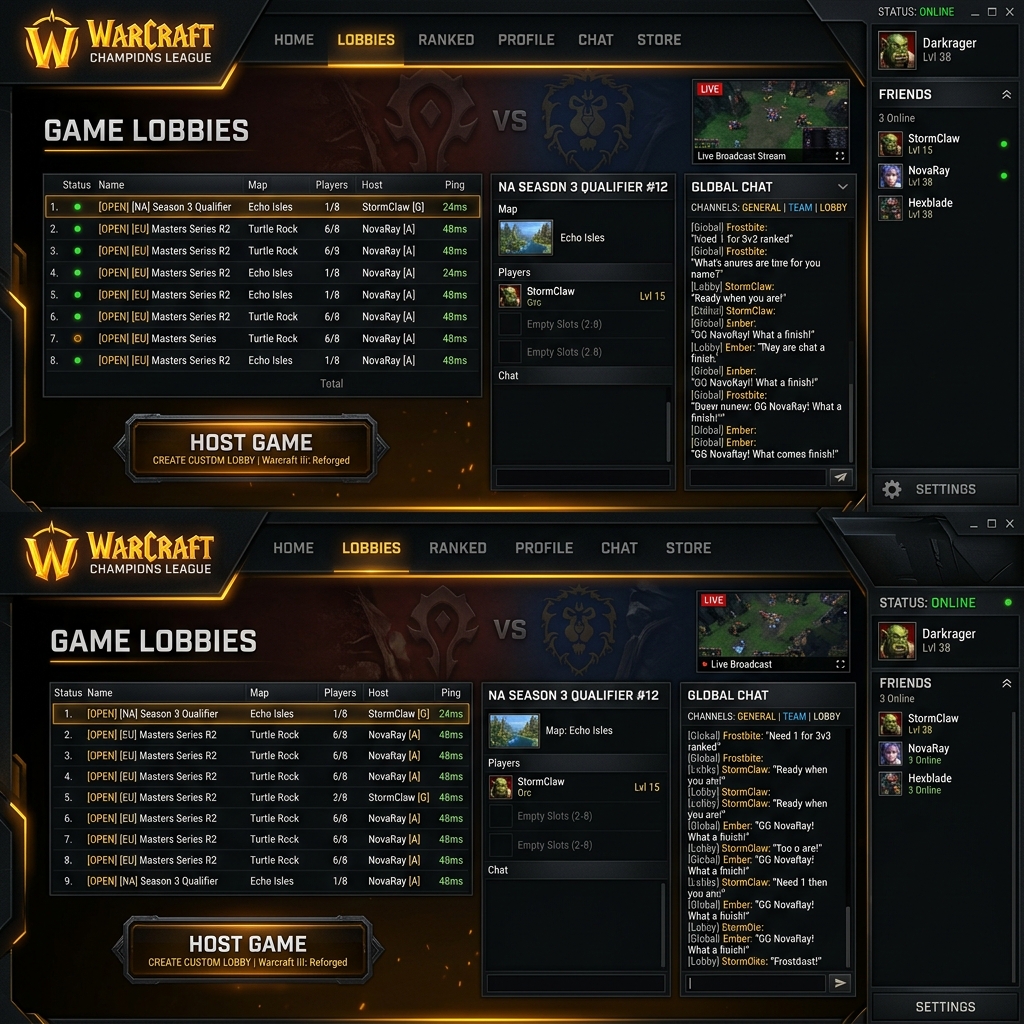 Main Client
CyberGameThai Client
Main app for login, chat, game room hosting, and automatic launcher patches.
- Windows 10/11
- Auto-updater included
Game Client (1.28 ORDR)
Warcraft III Game Client (1.28 ORDR)
A Warcraft III package prepared for a wide range of maps, including newer and larger custom maps that require launching through JNLoader.exe.
Do not have an account yet? Register free first — takes under a minute.
RegisterInstallation & Setup Guide
1. Extract Game
Extract the downloaded Warcraft III 1.28 zip file to any directory, e.g., C:\Games\Warcraft3.
2. Install Client
Download the CyberGameThai client installer and run it to install the launcher on your PC.
3. Set Game Path
Open the client, go to Settings, and set the executable game path pointing to warcraft.exe.
4. Play LAN
Join a room channel, hit "Start Game" on client, and navigate to Local Area Network (LAN) inside WC3 to join!
Selecting JNLoader in Client
ORDR version uses JNLoader system to boot. You need to configure the client settings to point to this executable.
- 1 Download and extract the ORDR game package.
- 2 Open CyberGameThai Client and go to Settings.
- 3 Select JNLoader.exe from the game folder.
- 4 Save the setting and click Start Game.
Antivirus notice
Some antivirus products may quarantine or remove JNLoader.exe while extracting. Add the game folder as an exclusion, or temporarily pause real-time protection and enable it again immediately after setup.
How to Install Custom Maps for Patch 1.28
Warcraft III Patch 1.28 loads custom maps from your active Windows Documents folder. Many players struggle to locate the correct directory due to OneDrive file path redirection.
Press shortcut Win + R on your keyboard to open Run window.
Locate the Warcraft III folder and open the Maps folder inside it.
Place your custom map files (e.g. .w3x or .w3m) inside this folder and launch the game.
OneDrive Sync Case: If OneDrive sync is active, Windows maps your Documents folder to C:\Users\[username]\OneDrive\Documents\Warcraft III\Maps. The shell command above handles this path mapping automatically.
Requirements
- 64-bit Windows 10 or Windows 11
- Warcraft III Classic Patch 1.28 only
- A CyberGameThai account and stable internet connection
- Allow the client and Warcraft III through Windows Firewall when prompted
Troubleshooting
The client cannot find the game
Use Browse and select war3.exe or Frozen Throne.exe inside the Warcraft III 1.28 folder.
No rooms appear in Local Area Network
Confirm the client is Online, Patch 1.28 is selected, and both apps are allowed through Windows Firewall, then reopen the LAN menu.
A room is visible but cannot be joined
Wait 5–10 seconds and retry. If it still fails, ask the host to confirm that WC3 and the CyberGameThai client are still running.
Windows shows an installation warning
Only continue when downloaded from cybergamethai.com and the filename/version match this page; choose More info → Run anyway.